- Make sure that you are using the latest HP Universal PCL5 driver
- When download completes, run the .exe file and unzip.
- Select “Traditional Mode” > Next.

- Select “Add a printer using a TCP/IP address or hostname” > Next.
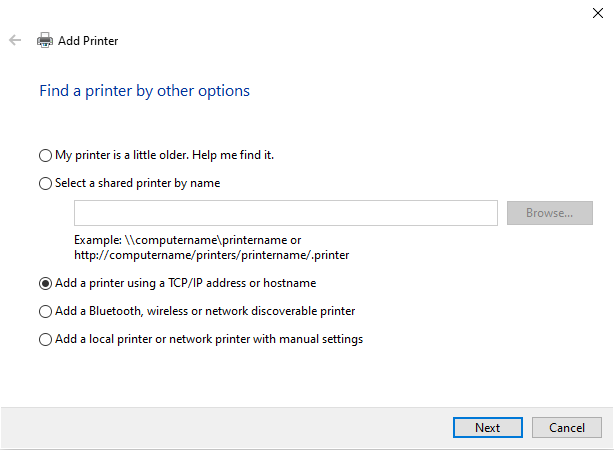
- Specify “Hostname or IP address” by typing the printer’s IP address.
- Type in the Port Name
- UNCHECK the box for “Query the printer and automatically select the driver to use”
- Select “Next”
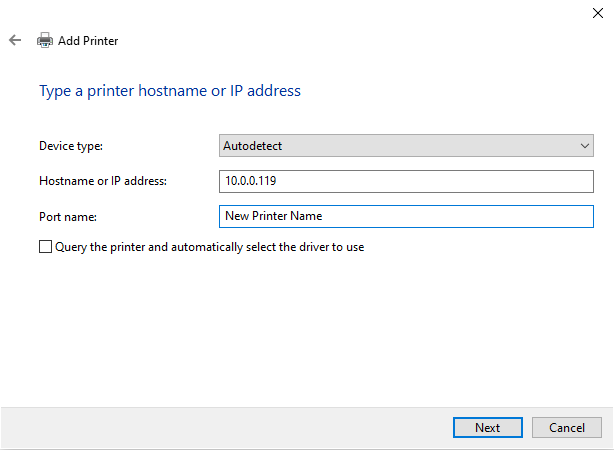
- Select “HP Universal Printing PCL 5” > Next.
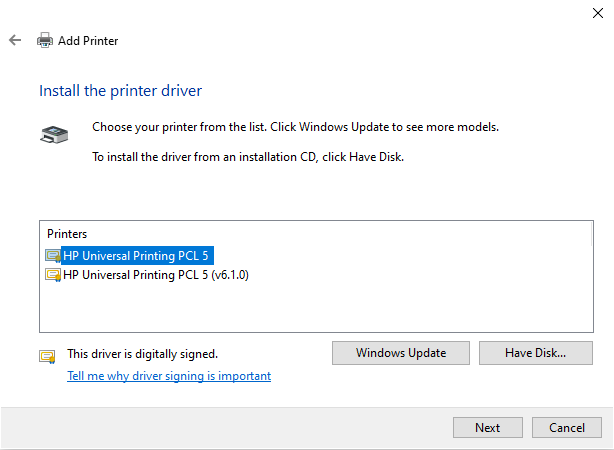
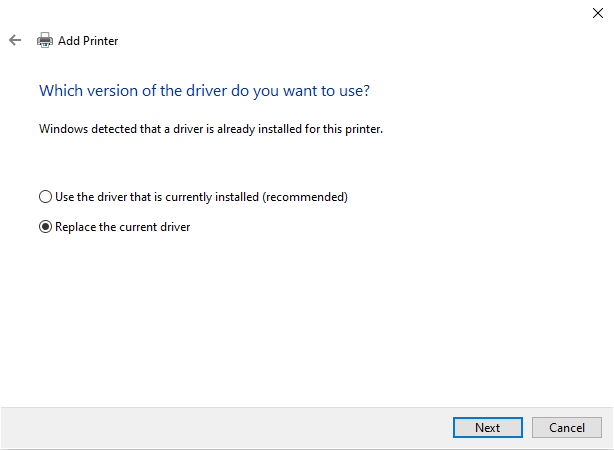
- If you have previously installed the printer, it may ask which driver you’d like to use.
- Select “Replace the current driver” > Next.
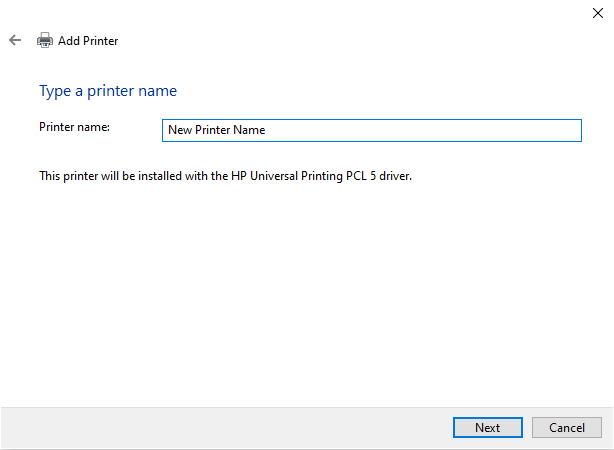
- Type the "Printer Name" > Next.
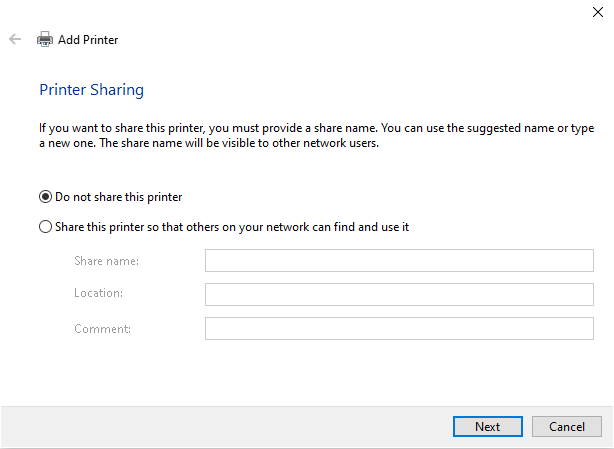
- Optional “Printer Sharing.”
- Specify if you’d like to share this printer to other network users.
- Select “Next”
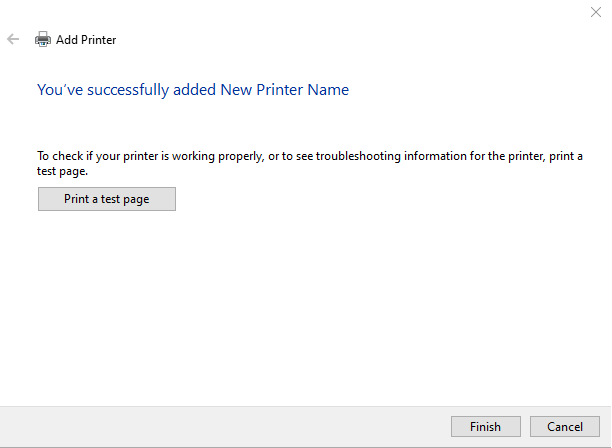
- You’ll see that you’ve successfully added the printer.
- Select “Print a test page” if you’d like to test the printer.
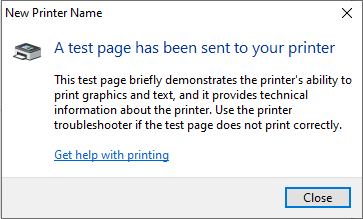
- Congratulations! You've successfully set up the PCL 5 printer.
- Next see: Tips on the HP Universal PCL5 Driver
- (Further UPD information available here: HP Universal Print Driver)
Comments