Updating the firmware on the Ethernet Secure Checkbox is a simple procedure in most instances. To update the firmware for your Ethernet Secure Checkbox:
- Remove the secure card from the base unit
- Save the files "PJT 3.71" and Flashprog.exe, linked at the bottom of this article, to your computer
- Double click on the Flashprog application icon.

- Click "Find" and select the file "PJT 3.71".
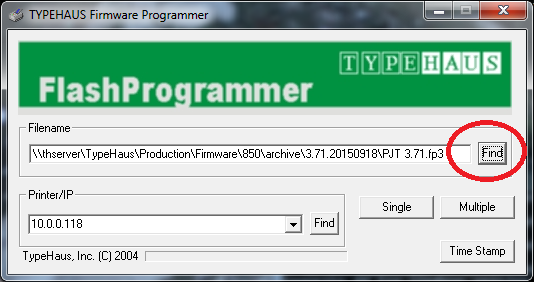
- Make sure the Ethernet Secure Checkbox is attached to a printer, then type the IP address of the printer to which the Ethernet Secure Checkbox is attached in the "Printer/IP" field.
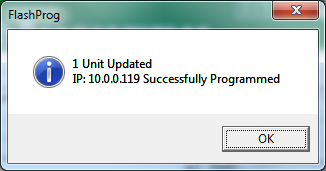
- Now click "Single" and you should see a progress bar scroll slowly across the window. You should receive a status message about whether the update was successful.
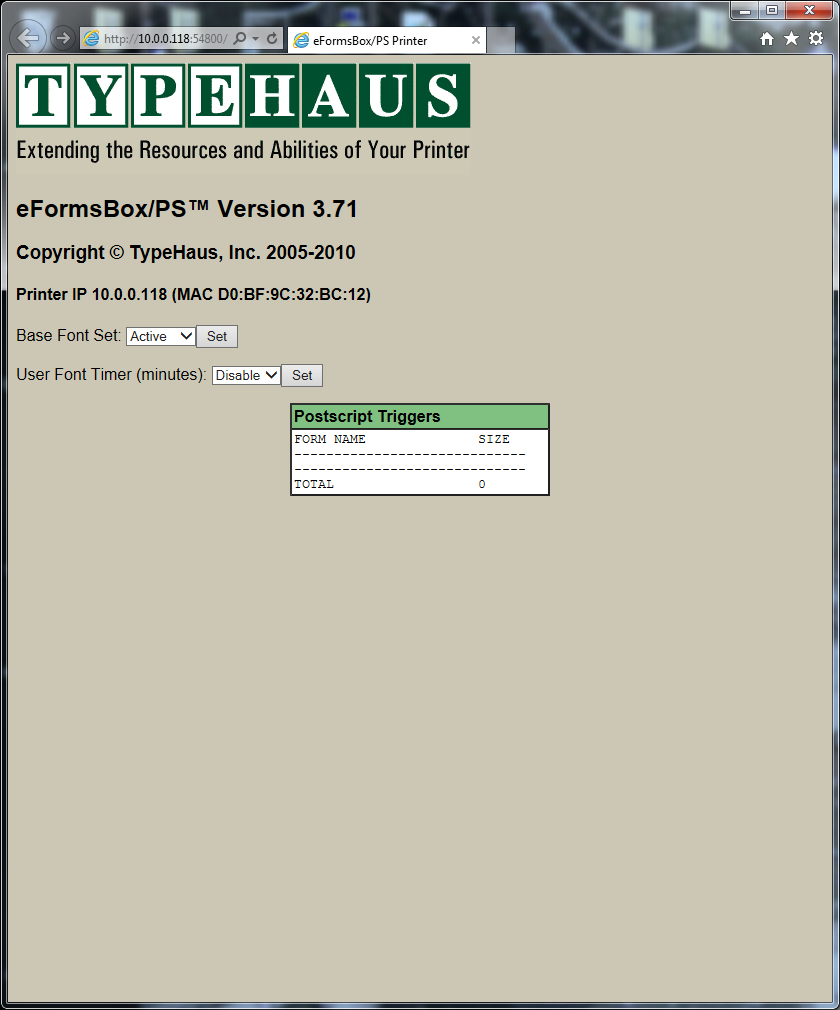
- When it's finished, open a web browser to http://<your.local.printer.ip>:54800. You should see "eFormsBox/PS Version 3.71" towards the top of the page. At that point repower both the printer and the Ethernet Secure Checkbox . If you have questions, please don't hesitate to call or email.
Comments